
Fixing Your Apple Magic Trackpad Issues: Magic Trackpad Troubleshooting Guide
If your Apple Magic Trackpad is acting up, you are not alone. These sleek devices are great when they work, but sometimes they can be frustrating. I’ve been there, and I want to help you fix your Magic Trackpad issues quickly and easily. This guide will walk you through simple steps to get your trackpad back in shape.
Common Magic Trackpad Troubleshooting Tips
When your Magic Trackpad stops responding or behaves oddly, the first thing to do is some basic troubleshooting. Here are some easy steps you can try right now:
Check the battery: If your trackpad uses replaceable batteries, swap them out for fresh ones. For rechargeable models, make sure it’s charged.
Restart your Mac: Sometimes, a simple restart fixes connection glitches.
Turn Bluetooth off and on: Go to your Mac’s Bluetooth settings, turn it off, wait a few seconds, then turn it back on.
Re-pair the trackpad: Remove the trackpad from your Bluetooth devices list and pair it again.
Clean the surface: Dirt or oils on the trackpad can cause it to misread your gestures. Use a soft, lint-free cloth to clean it gently.
If these steps don’t work, don’t worry. There are more things to try.
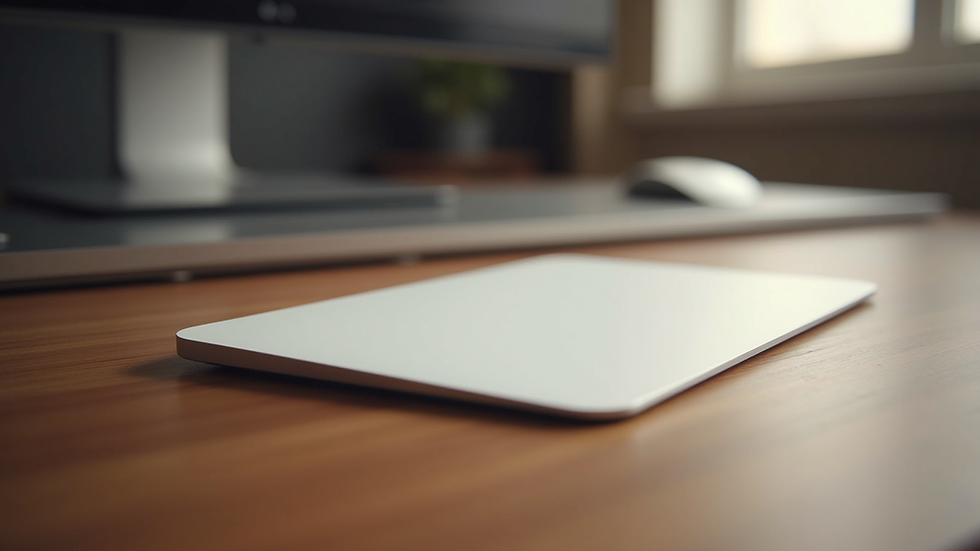
How to Fix Specific Magic Trackpad Problems
Different issues need different fixes. Here are some common problems and what you can do about them:
Trackpad Not Responding
If your trackpad doesn’t respond at all, check the power first. Make sure it’s turned on and charged. If it still doesn’t work, try resetting the Bluetooth module on your Mac:
Hold down Shift + Option and click the Bluetooth icon in the menu bar.
Select “Reset the Bluetooth module.”
Restart your Mac and try reconnecting the trackpad.
Cursor Jumps or Moves Erratically
This can happen if the surface under the trackpad is reflective or uneven. Try placing the trackpad on a flat, non-reflective surface. Also, check for interference from other wireless devices nearby.
Gestures Not Working Properly
If gestures like scrolling or zooming don’t work, check your trackpad settings:
Open System Preferences.
Click on Trackpad.
Make sure the gestures you want are enabled.
If settings look fine, try restarting your Mac or re-pairing the device.
Trackpad Click Not Registering
If the click feels soft or doesn’t register, the trackpad might be dirty or damaged. Clean it carefully. If cleaning doesn’t help, the hardware might need repair.
Does Apple Repair Trackpads?
Yes, Apple does offer repair services for Magic Trackpads. If your device is under warranty or covered by AppleCare, you might get a free repair or replacement. For out-of-warranty devices, Apple can still repair the trackpad, but it may come with a fee.
You can visit an Apple Store or authorized service provider to get your trackpad checked. They will diagnose the problem and suggest the best solution. Keep in mind that repairs can take some time depending on the issue and parts availability.
If you prefer a local option in Berlin, you can also consider trusted repair shops that specialize in Apple products. They often provide faster service and personalized support.

When to Seek Professional Help
If you’ve tried all the troubleshooting steps and your Magic Trackpad still isn’t working right, it’s time to get professional help. Here are signs you should visit a repair expert:
The trackpad won’t turn on or connect at all.
Physical damage like cracks or dents.
Persistent cursor or gesture problems after resets.
Battery issues that don’t resolve with charging or replacement.
Professional repair can save you time and frustration. They have the tools and experience to fix hardware problems that you can’t handle at home. For reliable service in Berlin, I recommend checking out apple magic trackpad repair options that offer quick turnaround and friendly support.
Tips to Keep Your Magic Trackpad Working Smoothly
Once your trackpad is fixed, you want to keep it working well for a long time. Here are some simple tips:
Keep it clean: Wipe the surface regularly with a soft cloth.
Avoid liquids: Don’t use your trackpad near drinks or in humid places.
Charge regularly: Don’t let the battery drain completely.
Update your Mac: Keep your macOS up to date to avoid software bugs.
Store safely: When not in use, keep the trackpad in a safe place to avoid damage.
Following these tips can extend the life of your Magic Trackpad and keep it responsive.
Fixing your Apple Magic Trackpad issues doesn’t have to be hard. With these simple steps and advice, you can troubleshoot most problems yourself. And if you need expert help, there are trusted repair options right here in Berlin. Keep your trackpad working smoothly and enjoy the full Apple experience every day.


