
Repairing Your Apple Magic Trackpad - Magic Trackpad Troubleshooting Guide
If your Apple Magic Trackpad is acting up, you are not alone. We’ve been there too. It can be frustrating when your trackpad stops responding or behaves strangely. But don’t worry. Repairing your Apple Magic Trackpad is often easier than you think. In this guide, I’ll walk you through simple steps to troubleshoot and fix common issues. Whether your trackpad is not clicking, not connecting, or just feels slow, I’ve got you covered.
Understanding Magic Trackpad Troubleshooting
Before diving into repairs, it helps to understand what might be causing the problem. The Magic Trackpad is a sensitive device that relies on Bluetooth and batteries to work. Problems usually come from:
Battery issues
Bluetooth connection problems
Software glitches
Physical damage or dirt buildup
Knowing this helps you narrow down the cause and fix it faster. For example, if your trackpad won’t connect, it might be a Bluetooth issue. If it’s not clicking, it could be a hardware problem.
Check Your Batteries First
One of the most common reasons a Magic Trackpad stops working is dead or weak batteries. If you have the older Magic Trackpad model, it uses AA batteries. The newer Magic Trackpad 2 has a built-in rechargeable battery.
For the older model, replace the AA batteries with fresh ones.
For the newer model, charge it fully using the Lightning cable.
Sometimes, a simple battery swap or charge fixes the problem immediately.

How to Fix Bluetooth Connection Issues
Bluetooth is the lifeline for your Magic Trackpad. If it disconnects or won’t pair, try these steps:
Turn Bluetooth off and on on your Mac. Go to System Preferences > Bluetooth and toggle it.
Forget the device and reconnect. Click the “X” next to your Magic Trackpad in Bluetooth settings, then pair it again.
Restart your Mac. Sometimes a reboot clears Bluetooth glitches.
Move closer to your Mac. Bluetooth range is limited, and interference can cause problems.
Check for software updates. Apple often releases fixes for Bluetooth issues.
If these steps don’t work, resetting the Bluetooth module can help:
Hold Shift + Option and click the Bluetooth icon in the menu bar.
Select “Reset the Bluetooth module.”
Restart your Mac and try pairing again.
Cleaning and Physical Repairs
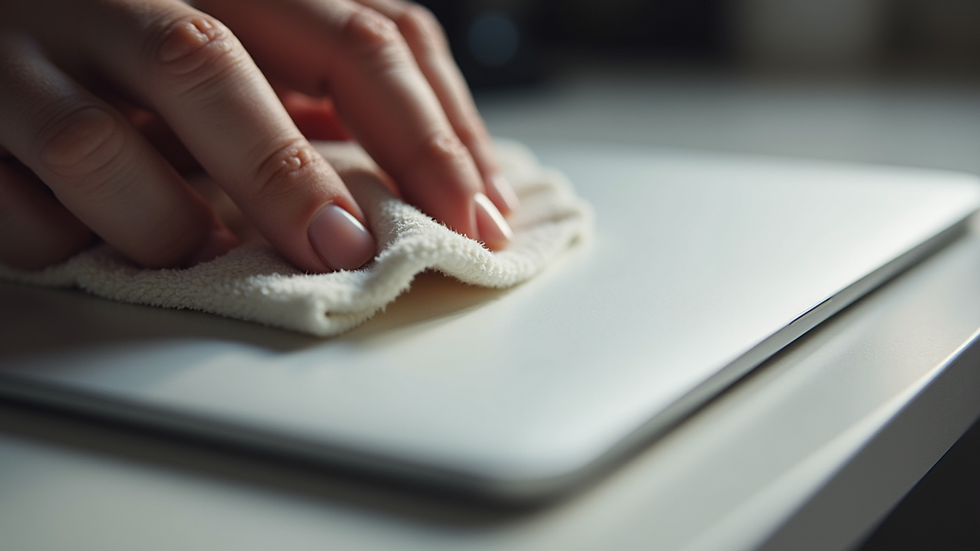
Dirt and grime can cause your Magic Trackpad to behave oddly. Cleaning it regularly keeps it smooth and responsive.
Use a soft, lint-free cloth slightly dampened with water.
Avoid harsh chemicals or sprays.
Clean the surface and edges gently.
Check for debris around the buttons or edges.
If your trackpad has physical damage like cracks or broken buttons, you might need professional help. Small repairs like replacing the battery cover or tightening screws can be done at home, but internal repairs require expertise.
When to Seek Professional Help
Sometimes, DIY fixes are not enough. If your Magic Trackpad still doesn’t work after trying these steps, it’s time to get expert help. Professionals can:
Diagnose hardware issues
Replace damaged parts
Perform deep cleaning and maintenance
Recover data if needed
If you live in Berlin, I recommend visiting a trusted repair shop that specializes in Apple products. They offer reliable and friendly service to keep your devices running smoothly. For example, apple magic trackpad repair services can extend the lifespan of your trackpad and save you money in the long run.
Tips to Keep Your Magic Trackpad Working Longer
To avoid frequent repairs, take good care of your Magic Trackpad:
Charge or replace batteries regularly.
Keep it clean and dry.
Avoid dropping or banging it.
Update your Mac’s software often.
Disconnect it properly when not in use.
Following these simple tips can prevent many common problems and keep your trackpad responsive for years.
Repairing your Apple Magic Trackpad doesn’t have to be complicated. With a little patience and the right steps, you can fix most issues yourself. And if you need help, professional repair services in Berlin are ready to assist. Keep your Magic Trackpad working smoothly and enjoy the seamless Apple experience you expect.


